
LOCAS Portal User Guide
Your step-by-step guide to the Local Content Assessment System
Procurement
The Procurement module is where you manage your company's purchasing activities and local content compliance. Click the Procurement tile on the dashboard to get started.
Core vs Non-Core: Why It Matters
Every procurement item is classified as either Core or Non-Core. This determines the rules:
Core (First Schedule)
Goods and services that may be sourced from local or non-local suppliers, subject to progressive local content thresholds and the 15% Margin of Preference.
Non-Core (Second Schedule)
100% reserved for local companies. You cannot award a non-core contract to a non-local supplier. No exceptions.
Progressive Local Content Thresholds (Core Items)
| Timeline (from Jan 2026) | Minimum Local Content |
|---|---|
| 6 months | 20% |
| 12 months | 25% |
| 24 months | 35% |
| 60 months onwards | 40% (minimum thereafter) |
How to Tell
When entering a tender, you select the schedule type: Core Goods, Core Services, Non-Core Goods, or Non-Core Services. The system enforces the rules automatically.
Procurement Dashboard
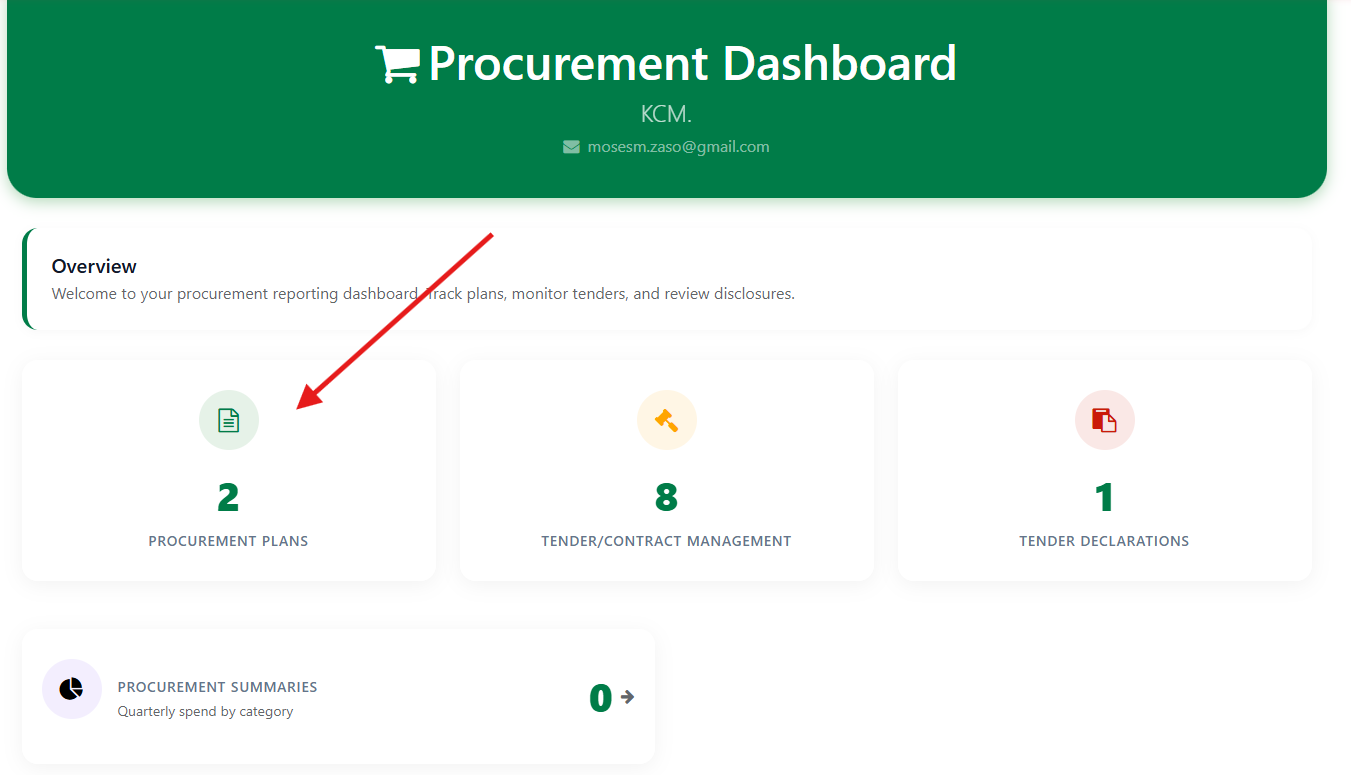
Clicking the Procurement tile on your dashboard opens the Procurement Dashboard. From here you access all four procurement areas via the header tabs or the overview tiles:
Procurement Dashboard — overview
| Section | What It Contains |
|---|---|
| Procurement Plans | Upload and manage your annual planning documents. |
| Tender Declarations | Submit Form I local content tender declarations. |
| Tenders & Contracts | View awarded tenders and contract management records. |
| Procurement Summaries | Quarterly Form II disclosure summaries and reports. |
The bottom of the dashboard shows a Latest Tenders table with your most recently recorded tenders, and a Recent Reports panel showing the status of your latest plan and summary submissions.
Maker-Checker Approval
All procurement submissions follow a maker-checker workflow. One person creates the record and a different person approves it before it goes to the Ministry:
| Step | Role | Action |
|---|---|---|
| 1. Create | Reporting Officer | Enters data and saves as Draft. |
| 2. Submit for Review | Reporting Officer | Clicks Submit for Review → status becomes Pending Review. |
| 3. Approve | Compliance Officer / Admin | Approves → status becomes Submitted and is sent to the Ministry. |
| 3. Request Revision | Compliance Officer / Admin | Returns to Draft with notes. Reporter corrects and resubmits. |
Procurement Plans
Your Procurement Plan is an annual document listing every item your company intends to purchase in the coming year. It must be uploaded before the fiscal year starts and is the foundation for all compliance tracking.
Procurement Plans — plans list

Page Header Buttons
| Button | What It Does |
|---|---|
| + Upload New Plan | Create a new procurement plan for the current or upcoming fiscal year. |
| Active Plans | Filter to show only currently active plan versions. |
| Cancelled Plans | View older versions that were superseded when a new version was uploaded. |
| All Plans | Show all versions across all years. |
Each plan in the list shows its Reference, Version badge, Fiscal Year, Description, and Status. Click the chevron on the left to expand a plan and see its line items inline. The action icons on the right let you view (eye), download, edit (pencil), or delete (×) the plan.
Creating a New Plan
Click + Upload New Plan. Choose your entry method:
New Plan — choose entry method

| Method | When to Use |
|---|---|
| Bulk / Excel Upload | Download the template, fill it in, and upload. Best for plans with many line items. The template includes dropdown menus for Schedule Item, UoM, and Procurement Method. |
| Manual / Single Entry | Add procurement lines one at a time directly in the browser. Best for smaller plans or quick additions. |
Bulk / Excel Upload — Required Columns
| Column | Required | Notes |
|---|---|---|
| Schedule Item | Yes | Select from the dropdown in the template. Format: “1000 — Item Name”. |
| Description | Yes | Item description (can be customised). |
| UoM | Yes | Unit of measure — Units, Kg, Service, Month, etc. |
| Quantity | No | Leave blank if not applicable. |
| Procurement Method | Yes | Use one of the methods configured in the system. |
| Est. Publication Date | No | When the tender will be published. Format: YYYY-MM-DD. |
| Est. Award Date | No | Format: YYYY-MM-DD. |
| Est. Start Date | No | Format: YYYY-MM-DD. |
Manual / Single Entry — Form Fields
New Plan — Manual / Single Entry form

Fill in the Plan Information section first:
| Field | Notes |
|---|---|
| Fiscal Year | Required. Select the reporting period this plan covers. |
| Plan ID | Auto-generated on creation (e.g., PP000001). Cannot be edited. |
| Estimated Plan Value (ZMW) | Total estimated value of the plan. Individual line values are not disclosed to suppliers. |
Then add lines in the Procurement Lines section using + Add Line. Each line requires:
| Field | Required | Notes |
|---|---|---|
| Schedule Item | Yes | Select from the SI 2025 schedule list. Determines Core/Non-Core classification. |
| Category | Yes | Auto-filled from the Schedule Item selection. |
| Description | Yes | Can be customised from the schedule item default. |
| UoM | No | Unit of measure. |
| Quantity | No | Planned quantity. |
| Procurement Method | No | Select from configured methods. |
| Est. Publication Date | No | When the tender will be advertised. |
| Est. Award Date | No | Expected award date. |
| Est. Start Date | No | Expected contract start date. |
Line Codes
Each line is automatically assigned a Line Code (001, 002, 003…) and a Class Code derived from the Schedule Item. You do not need to enter these manually.
Viewing a Plan and Creating Tenders from Lines
Click the eye icon on any plan to open the full plan detail view. This shows plan stats, an option to update the plan via file re-import, and the full Procurement Lines table.
Plan detail view — select lines to create a tender or contract

The plan header shows four summary counters: Total Lines, Estimated Value (ZMW), Core Items, and Non-Core Items.
Creating a Tender or Contract from Plan Lines
You can create a tender or contract directly from selected procurement lines without leaving the plan:
Select Lines
Tick the checkbox next to each line you want to include. You can select one or multiple lines. The count of selected lines is shown above the table.
Choose Create Tender or Create Contract
Two buttons appear when lines are selected: Create Tender and Create Contract. Click whichever applies — the system pre-fills the new record with the selected plan lines.
Tip
This is the fastest way to record a tender that covers multiple line items from your plan — select all the relevant lines and create the tender in one action rather than linking them manually afterwards.
Updating a Plan
Plans can be updated at any time using the Update Plan via File section on the plan detail page. Export the current plan to Excel, make your changes, then re-import using Re-Import. Existing lines are updated, new lines are added, and missing lines are deleted. Each re-import creates a new version automatically (V1, V2, V3…) and the previous version is cancelled. All versions are preserved for audit purposes.
For small changes, use the Quick Edit button on the plan detail header to edit lines directly in the browser.
Late Submission
Plans uploaded after the fiscal year starts are flagged as late and may result in an auto-generated penalty.
Tender Declarations
A Tender Declaration is a quarterly register of all tenders your company has put up or plans to advertise. There is one declaration per quarter.
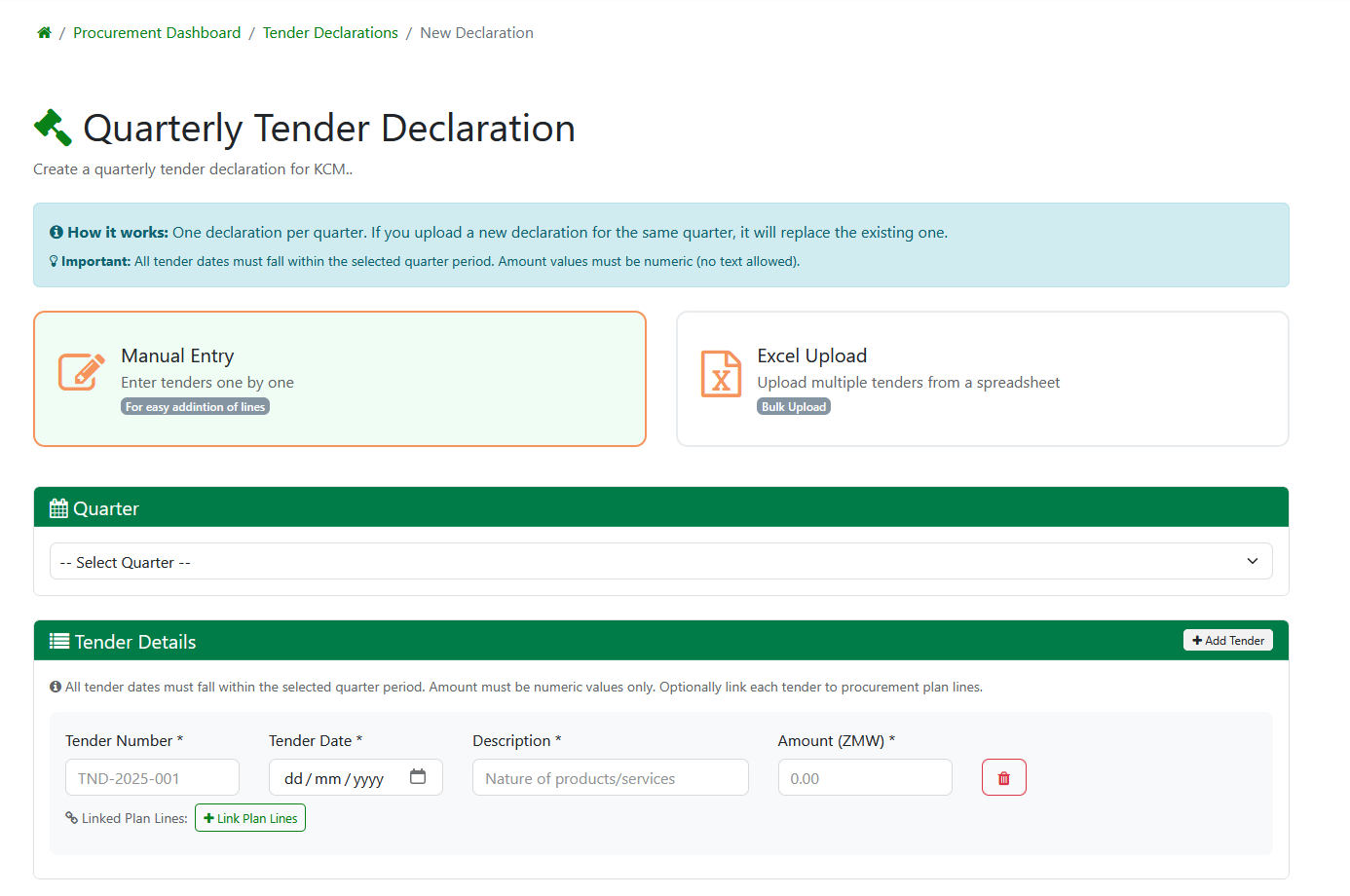
Select the Quarter
Choose which quarter this declaration covers. All tender dates must fall within this period.
Add Tender Lines
For each tender, provide: Tender Number, Tender Date, Description, Procurement Method, and Estimated Amount (ZMW). You can optionally add a schedule breakdown (Core Goods, Non-Core Services, etc.) with quantities and values.
Link to Plan Lines (Optional)
Connect each declaration line to items from your approved procurement plan. This creates a complete audit trail from plan → declaration → tender.
Submit for Review
Click "Submit for Review". A Company Administrator must approve before it goes to the Ministry (maker-checker).
Auto-Linking from Tenders
When you upload a tender result for a tender that is not in any declaration, the system automatically creates a declaration line for it in the current quarter's declaration. You don't need to declare it separately.
Late Submissions
Declarations submitted after the quarter deadline are flagged as late and may attract a penalty.
Tenders & Contracts
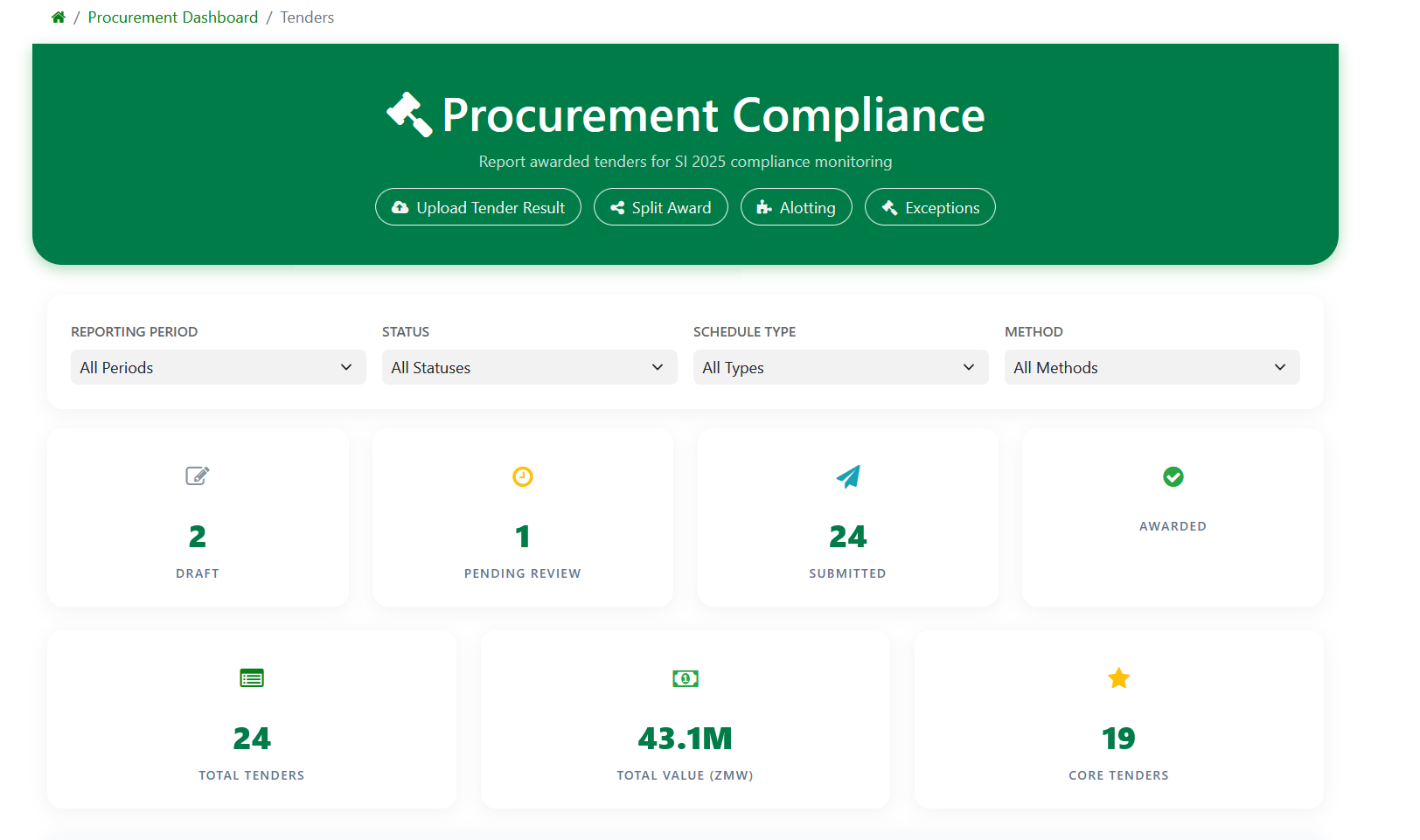
Click Tender/Contract Management on the Procurement Dashboard. This is where you report awarded tenders for compliance monitoring.
Status Tiles
Draft
Started but not submitted. Still editable.
Pending Review
Submitted by reporter, waiting for admin approval.
Submitted
Approved and sent to the Ministry.
Awarded
Fully processed and awarded.
Filters
Use dropdowns to narrow your list by Reporting Period, Status, Schedule Type (Core/Non-Core Goods/Services), or Method (ICB, NCB, Direct Contracting).
Action Buttons
| Button | What It Does |
|---|---|
| Upload Tender Result | Report a new awarded tender — single entry step-by-step form |
| Bulk Upload | Upload many tenders at once using an Excel template |
| Draft Tenders | View all tenders saved as draft — edit and submit when ready |
| Split Award | Award different parts of one tender to different local suppliers |
| Lot Splitting | Re-allocate when a local supplier fails to deliver |
| Exceptions | Record an exception when non-local sourcing is needed |
Draft Tile
The Draft stat tile on the Procurement Compliance dashboard is clickable. It takes you directly to the Draft Tenders page where you can review all unsaved or bulk-uploaded tenders waiting to be submitted.
Upload Tender Result
This is the main way to report procurements. You can report tenders in two ways:
Single Entry
Enter one tender at a time using a step-by-step form.
Bulk Upload
Upload multiple tenders from an Excel template.
Single Entry — Step by Step
Link to Declaration (Optional)
Search for a tender from your declaration. If found, details are pre-filled. If the tender is not in any declaration, the system will automatically create a declaration line when you save.
Tender Information
Enter the reference, procurement method (ICB/NCB/Direct Contracting), description, award date, and total value.
Schedule Items (Line Items)
Add one or more schedule items — e.g., "Core Goods — 500 units at K 2,000 each". For each line, select the schedule type, enter quantity, unit of measure, and value. The system auto-calculates the total contract value from all lines.
Add Bidder Suppliers
Search and add all suppliers who bid on this tender. Each supplier shows a Local or Non-local tag next to their name.
Enter Bid Details
For each bidder, enter their bid amount and quotation reference. The system auto-calculates the 15% Margin of Preference for Core items.
Understanding the 15% Margin of Preference (MoP)
For Core items, the system discounts local bids by 15% when comparing against non-local bids:
- Evaluated Local Price = Local Bid − 15%
- If the evaluated local price is equal to or less than the non-local bid → the local supplier must win
- If the evaluated local price is higher → you may award to the non-local supplier
Example: Local bids K 100,000. Evaluated = K 85,000. Non-local bids K 90,000. Since K 85,000 ≤ K 90,000, the local supplier must be awarded the tender.
The system calculates this automatically and flags any tender where a non-local supplier was awarded despite a local supplier qualifying under the MoP.
Select Winner
Choose the winning supplier using the radio button. You can also mark the tender as a direct OEM procurement if applicable (lot splitting rules don't apply to OEM purchases under Regulation 4(4)).
Supporting Documents
Upload award letters, evaluation reports, or OEM certificates. Optionally add contract references (PO number, delivery note, GRN, invoice).
Submit
Click "Submit" to save as draft, or "Submit for Review" to send for Company Admin approval. When approved, the tender value flows into your quarterly procurement summary.
Editing a Tender
While a tender is in Draft status, you can click "Edit" to modify any field. The edit page shows:
- Basic information (reference, method, description, dates)
- OEM exemption toggle (with manufacturer details if enabled)
- Schedule items table (add/remove lines)
- Bidders and their bid amounts (add new bidders, change winner)
Bulk Upload
Use the Bulk Upload button on the Procurement Compliance dashboard to report multiple tenders at once using an Excel template.
Open the Bulk Upload Page
Click Bulk Upload on the Procurement Compliance header. You will see two cards: one to download the template and one to upload your filled file.
Download the Template
Click "Download Template". The Excel file contains pre-filled dropdown lists for Methods, Suppliers, Schedule Items, and Procurement Plan Lines. Columns marked One Required* mean you must fill at least one of Schedule Item or Procurement Plan Line for each row (you do not need both).
| Column | Required? | Notes |
|---|---|---|
| A – Tender Reference | Yes | Your internal tender number |
| B – Tender Name / Description | Yes | Short description of the procurement |
| C – Schedule Item | One Required* | Pick from dropdown (Core Goods, Services, etc.) |
| D – Procurement Plan Line | One Required* | Pick from dropdown — links this tender to your approved plan |
| E – Procurement Method | Yes | ICB / NCB / Direct Contracting |
| F – Award Date | Yes | Format: YYYY-MM-DD |
| G – Total Value (ZMW) | Yes | Numbers only, no commas |
| H – Winning Supplier | Yes | Pick from dropdown |
| I – Declaration Reference | No | Links to an existing declaration if applicable |
Fill in the Template
Enter one tender per row starting from row 3. Use the built-in dropdown lists in each column — do not type free text where a dropdown is provided. Leave a row blank to skip it (blank rows are ignored).
Grouping into one tender: If a procurement spans multiple schedule types (e.g., Core Goods + Services), enter each as a separate row using the same Tender Reference. The system groups rows with matching references into a single tender with multiple line items.
Upload and Review
Select your completed file and click "Upload". The system validates every row before saving anything. If any row has an error, the upload stops and a list of failed rows with reasons is shown — fix the errors and re-upload. When all rows are valid, the tenders are created as Draft and you will see a success summary.
All-or-Nothing Upload
If even one row fails validation, no tenders are saved. The system shows you exactly which rows failed and why. Fix those rows in your file and re-upload.
After a Bulk Upload
Bulk-uploaded tenders start in Draft status. Click the Draft stat tile on the dashboard to review them, then submit each one for review when ready. The tender value flows into your quarterly procurement summary only after approval.
If the tender matches a plan line item you selected in column D, they are automatically linked. If not, the system tracks it as an unplanned procurement for compliance purposes.
Split Awards
A Split Award lets you divide a single tender among multiple local suppliers from the outset. This promotes local participation and reduces concentration risk. There are two types:
Split by Item
One tender with multiple line items, each awarded to a different local supplier based on their strength.
Create Split Award
Go to Procurement Dashboard → Split Award and click "New Split Award". Select "By Item" as the split type.
Enter RFQ Details
Enter the RFQ reference number and description of what is being procured.
Add Line Items
Add the items being procured. For each line: schedule item, quantity, unit of measure, and unit price.
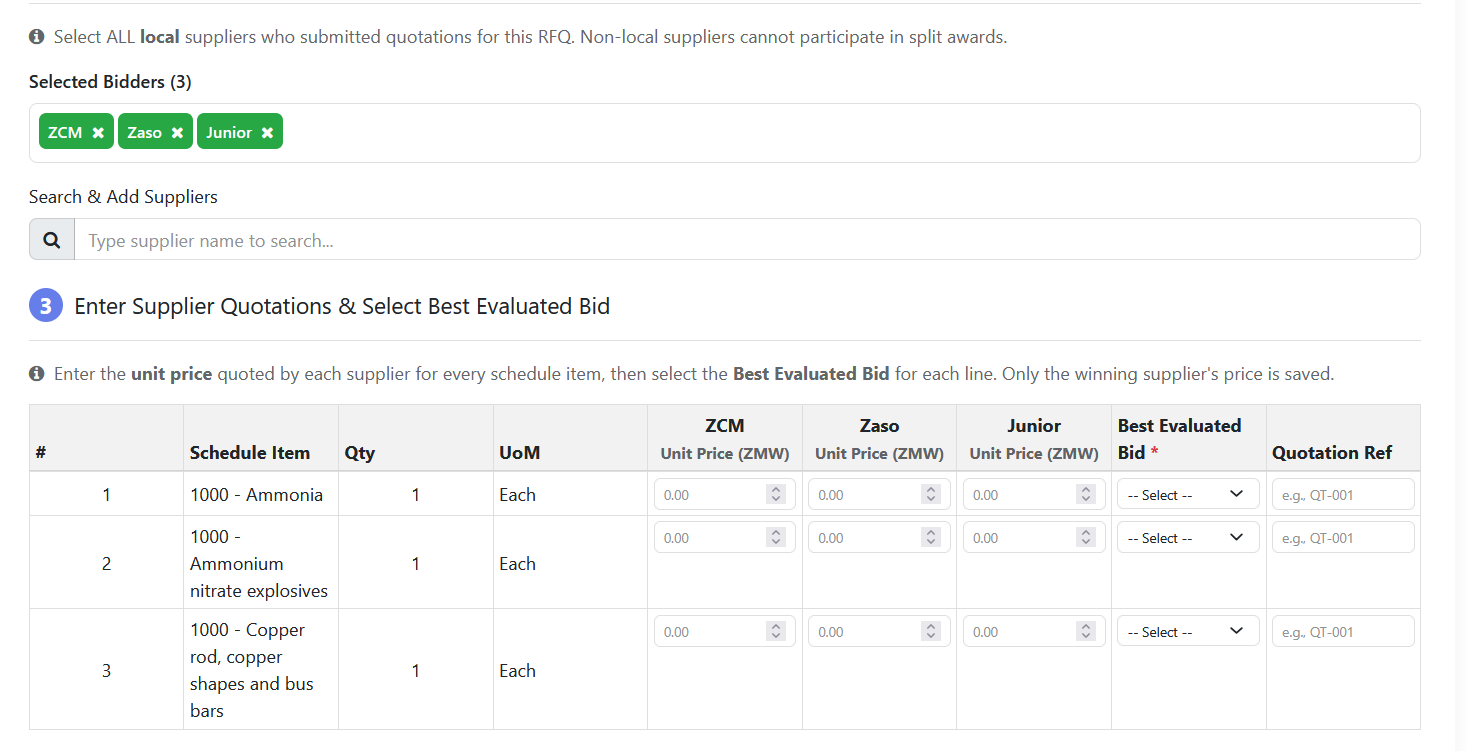
Add Suppliers & Enter Bids
Add the suppliers who quoted. The form shows a matrix of items × suppliers. Enter each supplier's unit price per item. The system highlights the lowest bid per item.
Review Allotting
The system auto-selects the best-evaluated bid per line item (applying the 15% MoP for Core items). Review the proposed allocation — which supplier gets which item.
Submit for Review
Click "Submit for Review". A Company Admin reviews and approves. Once approved, the system generates separate contracts (tenders) for each winning supplier.
Example
A K 5M consumables tender: rollers to Supplier A (lowest bid), grinding media to Supplier B, lubricants to Supplier C, safety wear to Supplier D. Each supplier delivers a different product.
Split by Quantity
One item with a large quantity divided among multiple local suppliers. Each gets a portion of the same product.
Create Split Award
Select "By Quantity" as the split type.
Enter the Item & Total Quantity
Describe what is being procured and the total quantity needed (e.g., 10,000 tonnes of cement).
Allocate to Suppliers
Add the local suppliers and enter how much quantity each one will deliver. The total must equal the original quantity.
Submit for Review & Approval
Admin approves → system generates one contract per supplier with their allocated quantity.
Example
10,000 tonnes of cement: 5,000 to Supplier A, 3,000 to Supplier B, 2,000 to Supplier C. All deliver the same product — the quantity is split so no single supplier is overwhelmed.
Editing Split Awards
While in Draft status, click "Edit" on the split award detail page. The edit page shows:
- A read-only summary at the top (reference, type, supplier count)
- An editable table of line items with supplier allocations
- An "Add New Line" form for additional items
- Delete buttons to remove lines
- Document management (delete existing, upload new)
- Buttons: "Save Draft" (saves without submitting) or "Save & Resubmit" (saves + sends back for review)
Lot Splitting (Delivery Failure)
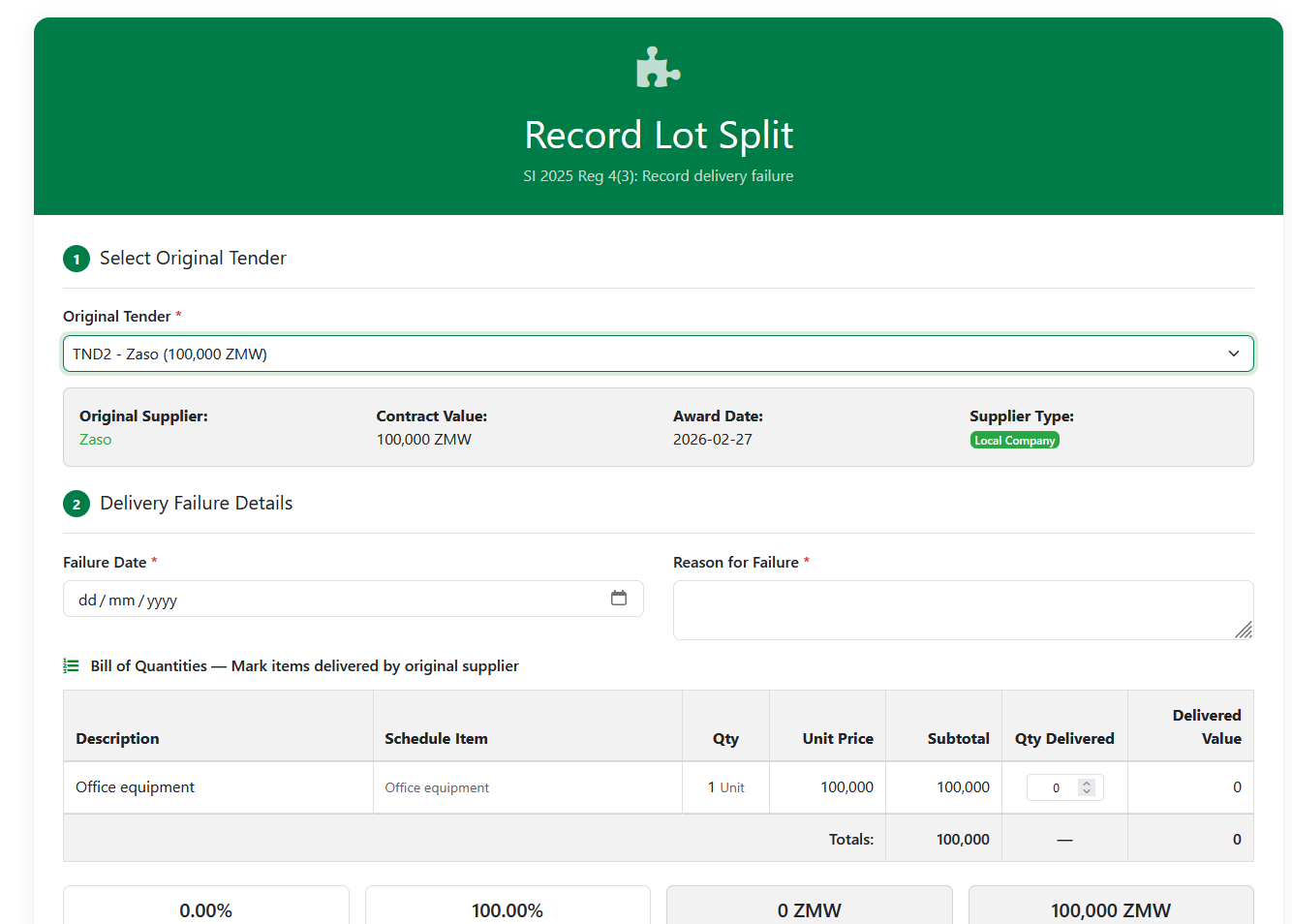
SI 2025 Regulation 4(3) allows you to "split" a lot when a local supplier fails to deliver. The remaining work must be re-allocated to other local suppliers first.
When to Use
Use this only when a contracted local supplier has failed to deliver (fully or partially). Do not use for initial tender planning — use Split Awards instead.
Select the Tender
Go to Procurement Dashboard → Lot Splitting and click "New Lot Split". Choose the tender where the supplier failed to deliver.
Record Failure Details
Enter the failure date and reason (e.g., "Capacity constraints", "Quality issues", "Financial difficulties").
Mark What Was Delivered
Enter the delivery percentage — what portion of the contract the original supplier successfully delivered (e.g., 40%). If nothing was delivered, enter 0%.
Allocate the Remainder
The remaining undelivered portion must be re-allocated following this sequential priority:
- Other local suppliers first — allocate as much as possible to Zambian-owned or citizen-empowered companies
- Non-local suppliers only if locals cannot fulfil — this triggers an exception and auto-generates a penalty
For each supplier allocation, enter the supplier, allocated value, and justification.
Submit for Review
Click "Submit for Review". A Company Admin reviews the lot split:
- Approve → lot split is finalised. If non-local allocation exists, an auto-penalty is generated (category: contract subdivision).
- Request Revision → returns to Draft with notes. The reporter can edit and resubmit.
No Ministry Approval Needed
Lot splitting is a reporting tool — the mine records what happened and the system flags non-compliance. The Ministry is notified but does not need to approve the lot split.
Exceptions (Non-Local Allocation)
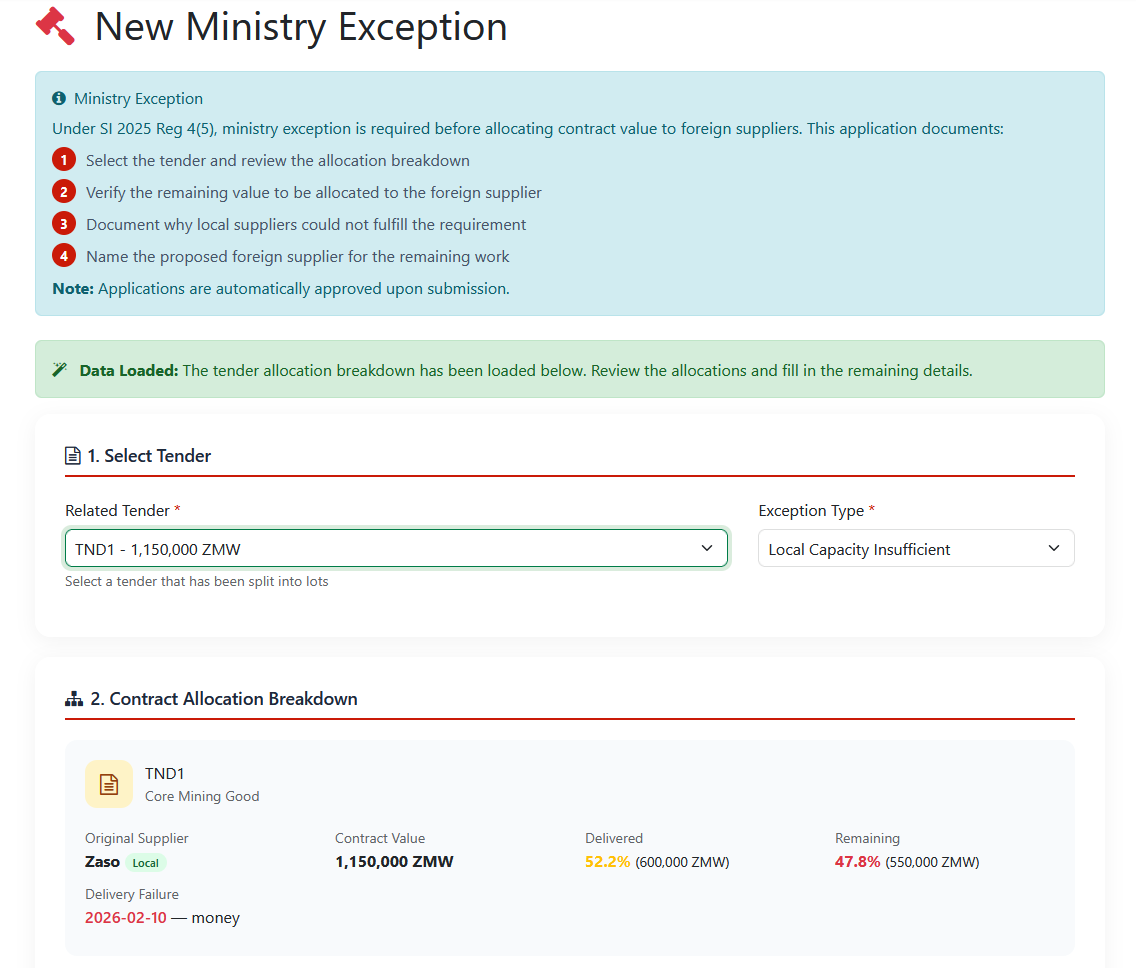
SI 2025 Regulation 4(5) allows you to record an exception when local capacity is insufficient and a non-local supplier must be used. The mine applies the exception and reports it to the Ministry — no Ministry approval is required.
Creating an Exception
Select the Tender
Go to Procurement Dashboard → Exceptions and click "New Exception". Choose the tender or lot split that requires non-local sourcing.
Choose Exception Type
Select the reason: Local Capacity Insufficient, Technical Requirement, Emergency/Urgent, or Other (provide explanation).
Add Non-Local Supplier Allocations
For each non-local supplier allocation, enter the supplier, item description, quantity, unit price, and a justification explaining why this supplier was chosen.
Document Capacity Assessment
Provide a capacity assessment summary — confirm that you assessed whether local suppliers could meet the requirement. Add a technical justification explaining why they could not.
Log Supplier Contact Records
Record which local suppliers you contacted, when, how (email/phone/meeting), whether they responded, and why they declined or could not deliver. You must have contacted at least 3 local suppliers.
Upload Supporting Documents
Attach any supporting evidence: quotation requests, supplier responses, capacity reports, technical specifications.
Submit for Review
Click "Submit". A Company Admin reviews the exception:
- Approve → exception is finalised and reported to the Ministry
- Request Revision → returns to Draft with a reason. You see the revision reason on the edit page and can make corrections and resubmit.
Editing an Exception
While in Draft status (including after a revision request), click "Edit Exception" on the detail page. The edit page provides:
- A read-only summary at the top (tender, company, submission date)
- If revision was requested, a highlighted alert showing the revision reason
- Editable exception type
- Inline editable table of supplier allocations (change supplier, qty, price, justification; add new rows; delete rows)
- Editable capacity assessment and technical justification
- Supplier contact records table
- Document management (delete existing files, upload new ones)
- Buttons: "Save Draft" (saves without submitting) or "Save & Resubmit" (saves and sends back for admin review)
Key Points About Exceptions
- This is a reporting tool — the mine applies the exception and reports to the Ministry. No Ministry approval step is needed.
- There is no terminal "rejected" state. If the admin requests revision, the exception returns to Draft for editing.
- All foreign items must be fully allocated to suppliers before the exception can be submitted.