
LOCAS Portal User Guide
Your step-by-step guide to the Local Content Assessment System
Getting Started
When you log in to LOCAS, you land on your Local Content Management dashboard. This is your home base — all reporting modules and quick navigation links are accessible from here.
Local Content Management dashboard
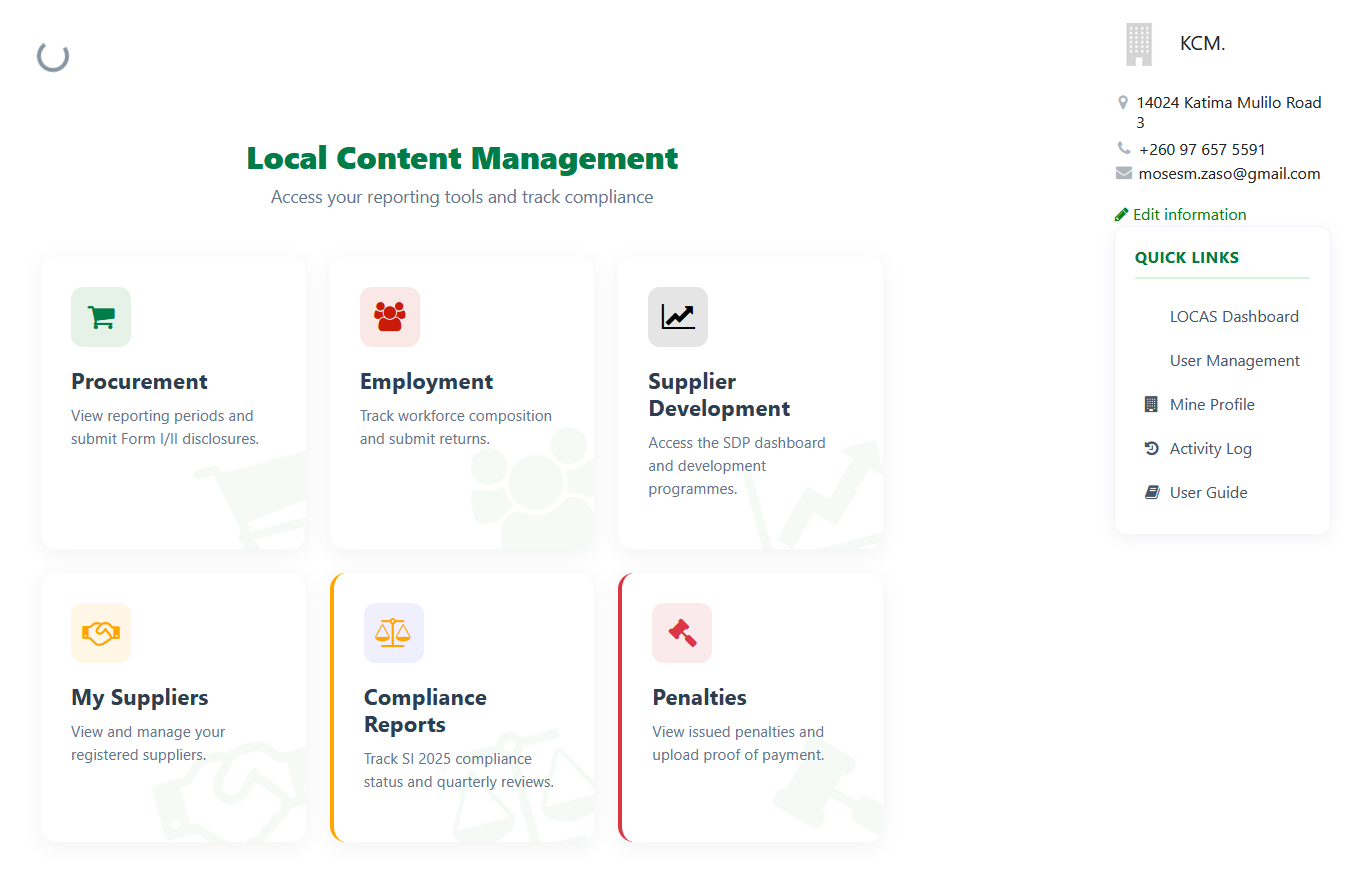
Dashboard Tiles
The dashboard displays six tiles. Click any tile to open that module:
| Tile | What It Does |
|---|---|
| Procurement | View reporting periods and submit Form I/II disclosures. |
| Employment | Track workforce composition and submit quarterly employment returns. |
| Supplier Development | Access the SDP dashboard and manage development programmes. |
| My Suppliers | View and manage your registered suppliers. |
| Compliance Reports | Track SI 2025 compliance status and review quarterly assessments. |
| Penalties | View issued penalties and upload proof of payment. |
Outstanding Penalties Banner
If your company has any outstanding penalties, a red alert banner appears at the top of the dashboard. This banner only appears when there are penalties requiring attention — it will not be visible if your account has no pending penalties.
Dashboard with Outstanding Penalties banner visible
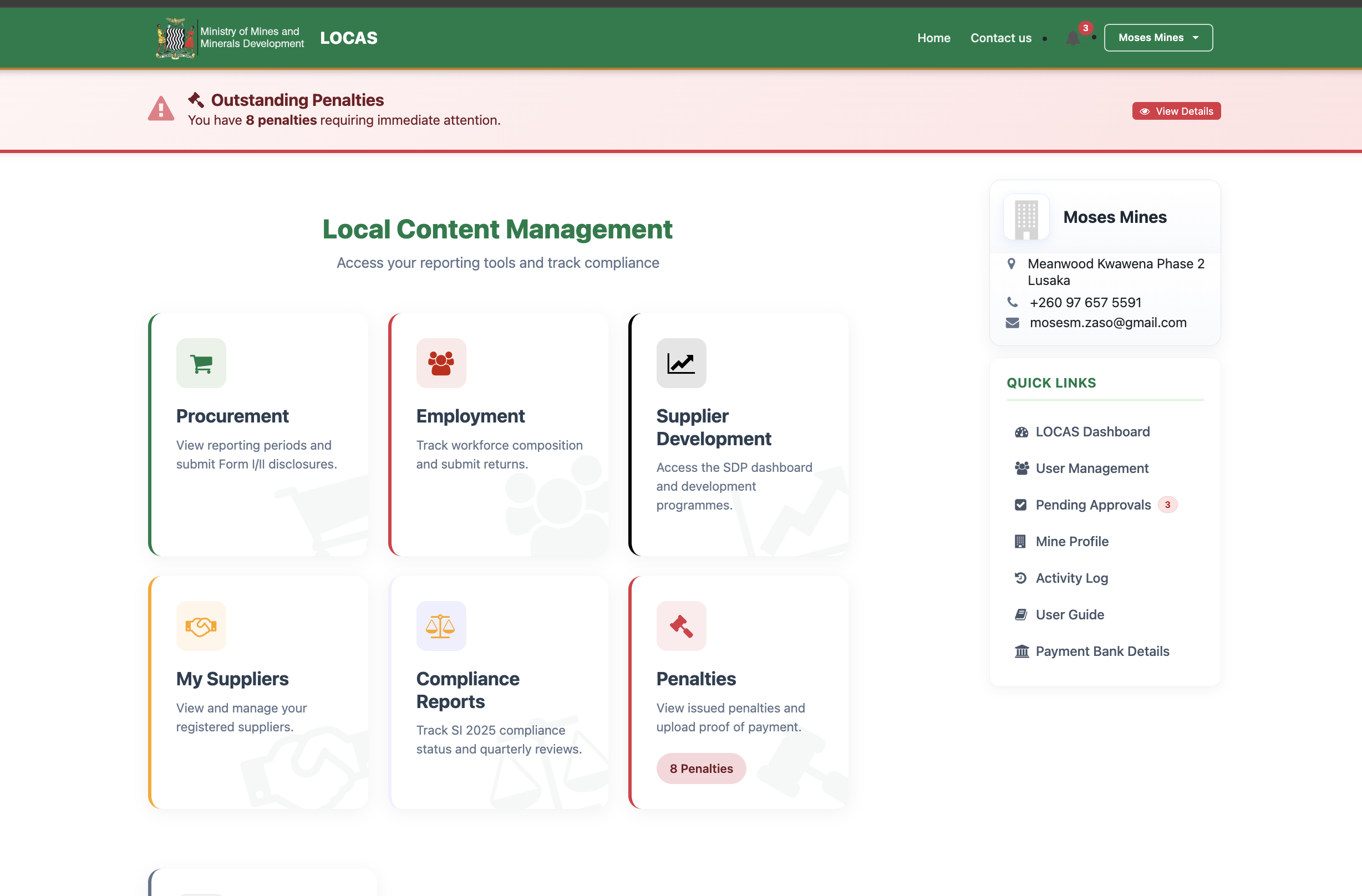
Click View Details on the banner to go directly to the Penalties module.
Quick Links Sidebar
On the right side of the dashboard, the Quick Links panel provides shortcuts to key areas. Your company name, address, and contact details are also displayed at the top of this panel.
| Quick Link | What It Does |
|---|---|
| LOCAS Dashboard | Jump back to the main dashboard from anywhere in the portal. |
| User Management | Admin only — add officers, assign roles and permissions, manage portal access. |
| Pending Approvals | Admin/Compliance only — review and approve documents submitted by team members. Shows a badge count when items are waiting. |
| Mine Profile | View and update your company details and submit your profile for Ministry approval. |
| Activity Log | Timeline of all submissions, approvals, rejections, and system events. |
| User Guide | Opens this guide. |
| Payment Bank Details | Displays the Ministry’s bank account details for penalty payments. |
Payment Bank Details
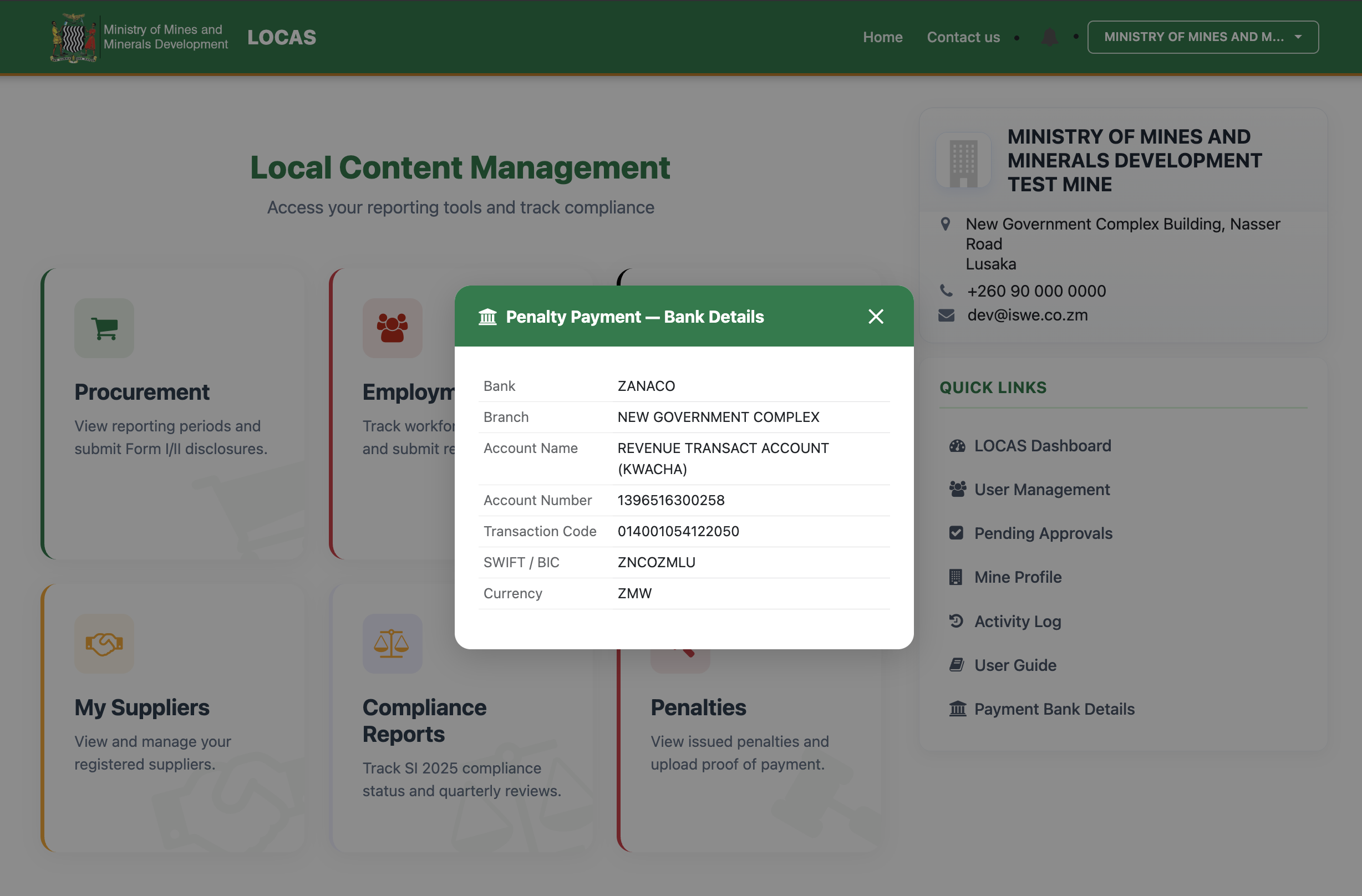
Clicking Payment Bank Details in the Quick Links opens a pop-up showing the official bank account to use when paying penalties to the Ministry. Use these details when making a bank transfer and keep your proof of payment — you will need to upload it in the Penalties module.
Penalty Payment — Bank Details modal
Tip
Always use the Transaction Code shown in this modal as the payment reference when making a bank transfer, so the Ministry can match your payment to the correct penalty.
Understanding Status Badges
Every submission in LOCAS displays a coloured status badge so you can see at a glance where it stands:
| Badge | Meaning |
|---|---|
| Draft | Not yet submitted. You can still edit it. |
| Pending Review | Submitted for internal review. Waiting for the checker to approve. |
| Pending Approval | Reviewed internally and awaiting final approval before submission to the Ministry. |
| Approved / Submitted | Approved and sent to the Ministry. No further action needed. |
| Revision Needed | Returned to Draft with reviewer notes. Correct the issues and resubmit. |